
Open an Illustrator .ai file and save it as SVG
Open an Adobe Illustrator .ai file in your browser with Madosuite Vector and export it as SVG for free. What opens, and what to check after export.
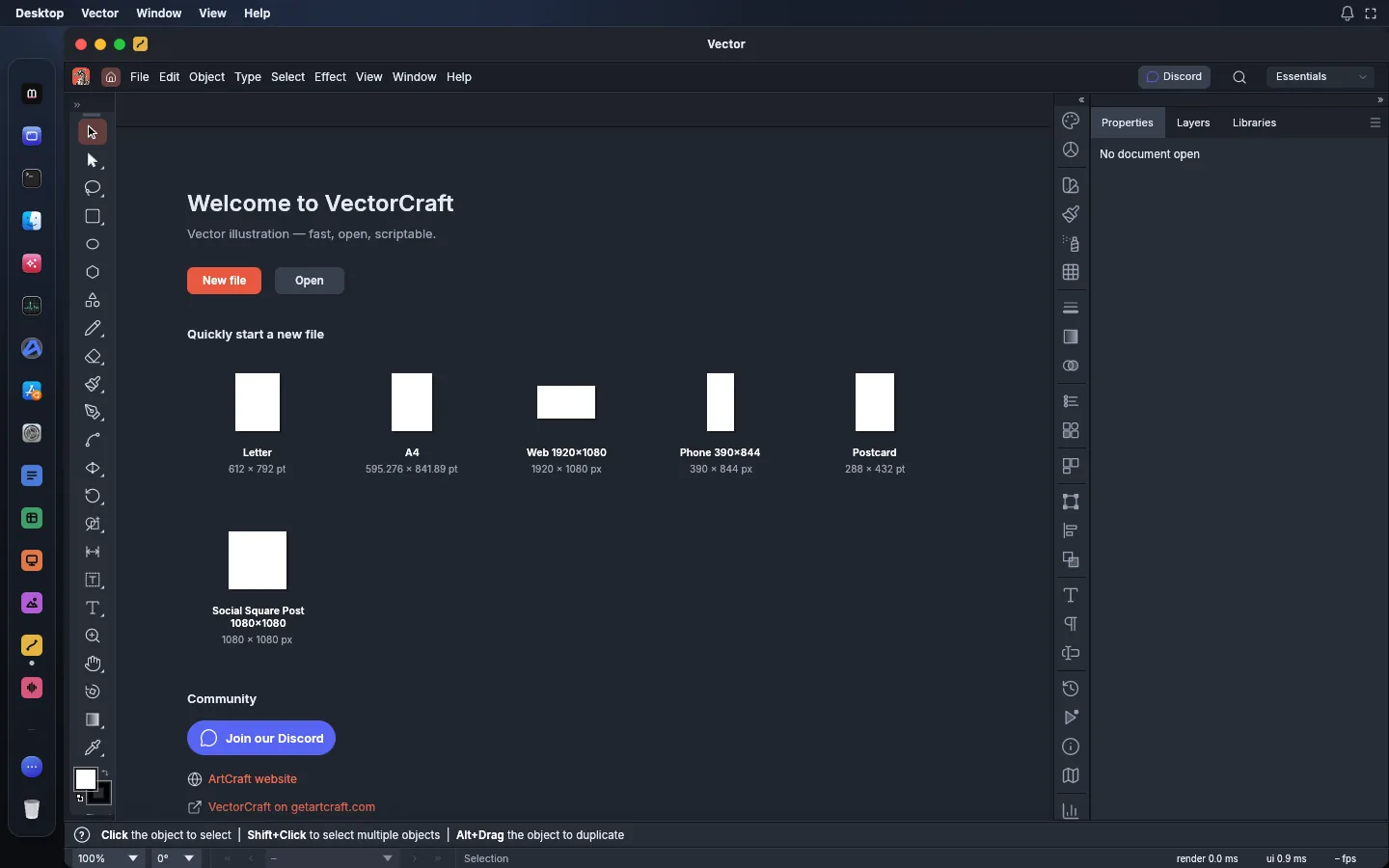
You can open an Illustrator .ai file and save it as SVG for free with Vector, the vector illustration app in Madosuite. Upload the file, open it in Vector, check it, and export SVG, all in a browser tab on your own device.
Here is what opens, how to export, and what to check before you use the SVG.
What is inside an .ai file
Most .ai files saved by modern versions of Illustrator are PDF-compatible: alongside Illustrator’s own data, the file holds a PDF version of the artwork. Vector reads that PDF-compatible content. It also reads the much older version 7 .ai format, keeping layers, groups and type.
That has two practical results:
- If the file was saved with PDF compatibility, Vector can open the artwork.
- Illustrator’s own editing data is not something Vector writes back. You get the shapes, colours and text that the PDF part describes.
Why use Madosuite for this
- Free, no account. Madosuite is a free desktop of apps in a browser tab. Signing in with 0cloud is optional.
- The file stays with you. Madosuite runs a Linux machine in the browser on your device. Your file goes into its home folder in the browser. It is not uploaded to us.
- A real vector editor. You can fix things before you export: Pen and Direct Selection, Pathfinder, Layers, Swatches and Appearance are there.
How to convert AI to SVG
- Go to madosuite.com and open the desktop.
- Open Files from the dock.
- Press Upload and pick your
.aifile. - Open the file with Vector.
- Look over the artwork and the Layers panel. Fix anything you need to.
- Export the document as SVG.
- Open Files and download the SVG.
If you need several sizes or formats at once, for example SVG plus PNG for a website, use Export for Screens. Vector can also export PDF (including PDF/X), PNG, JPEG, WebP and PSD, and save back to a PDF-compatible .ai.
Check the SVG before you use it
An SVG is only useful if it looks right where it goes. After export, open the SVG again, in Vector or in your browser, and check these:
- Text. Is the text still text, and in the right font? If the font is not available, the look changes.
- Gradients. Compare simple linear and radial gradients with the original. Look harder at complex fills, such as mesh gradients and blends.
- Transparency and effects. Check shadows, glows and blend modes.
- Size and artboards. Make sure the canvas size is what you expect, and that you exported the artboard you meant.
What may not carry over
Vector is an alpha. It counts itself about 65% ready for real work by a mainstream illustrator, by its own self-assessment. For .ai files in particular:
- AI exchange is not reliable yet. Layer structure in real-world files may not come through as it was, and Illustrator’s own editing data is not written. Vector lists this first among what is missing.
- Files saved without PDF compatibility may not open with their full artwork.
- 3D beyond an initial Revolve is not there, so 3D effects from the original may not stay editable.
- Vertical CJK text composition is not complete.
- Scripting, generative AI features and the rest of Variables are not there.
Keep the original .ai file. If the SVG matters, ask the sender for an SVG or PDF export as well, and compare.
When you do not need Illustrator
If you mostly open, adjust and export vector files, you may not need a subscription. As of 14 November 2026, Adobe Illustrator costs US$22.99 a month on an annual plan billed monthly. Read Illustrator alternatives for more, or about .ai files.
For the converter page, go to AI to SVG.